---
title: Business Area or Service Area Business (SAB)? What do I select for my business when creating the campaign?
description: Business Area or Service Area Business (SAB)? How do I categorize my business for Campaigns?
---
[Skip to content](https://info.agencyassassin.com/knowledge-base/business-area-or-service-area-business-sab-what-do-i-select-for-my-business-when-creating-the-campaign#main-content)
English - United States
Show submenu for translations

Open main navigation
Close main navigation
- English - United States
Show submenu for translations
How Agency Assassin can help you?
- There are no suggestions because the search field is empty.
1. [Agency Assassin Knowledge Base](https://info.agencyassassin.com/knowledge-base?hsLang=en-us)
2. [Campaigns](https://info.agencyassassin.com/knowledge-base/campaigns?hsLang=en-us)
November 26, 2024
# Business Area or Service Area Business (SAB)? What do I select for my business when creating the campaign?
Selecting the right category your business is very important, because it directly ties to your Google Map business listing, and therefore directly ties to how well our software can benefit you. Additionally, some features are not accessible for Service Area Business - like, "Driving Directions", simply because Service Area Business doesn't have physical address to drive to.
#### So how do you know which one to use?
If your business has a **physical location**, i.e a storefront with logo on the door, a place where customers can actually **visit**, you need to use the **Business Area** setup.
If your business **does** **not** have a specific physical location, you should use the **Service Area Business/SAB** setup.
#### Business Area:
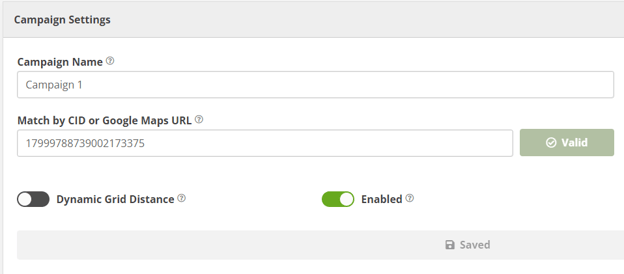
When you go in to set up your Campaign, there is a space in the settings that will ask for your CID or Google Maps URL (as seen in the image below):
#### But what is your CID?
Your Business’ CID is essentially your Google Business Maps Identification Number (not to be confused with a client identification number from Google Analytics, your state/federal Business ID, or a specific place ID) - it allows for Google to cluster information, and identify businesses across multiple different product offerings. For our purpose, it makes sure that our software is applying to the correct business listing (this is especially important with businesses that have similar names and offerings - i.e, Denver Plumbing, Denver Plumbers LLC, Plumbing in Denver)
#### Finding your CID - Business Area listings
When you’re ready, open Google Maps and follow these steps:
1. Search the business name in Maps. Make sure it’s the only search result showing in your map browser.
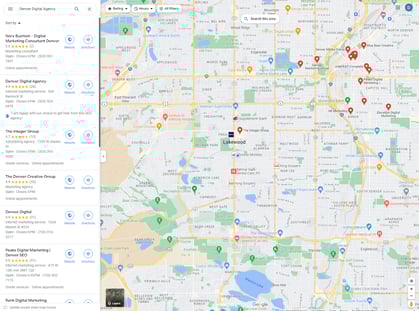
2. Pinpoint the business. If there are multiple results, you won’t be able to locate the CID in the source code or the URL.
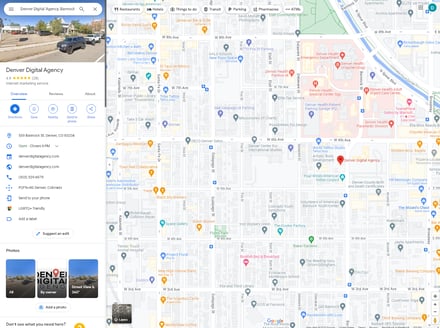
3. Once you’ve locked on to the business, click on the address bar in your browser. Copy all from the address bar. Go back to Agency Assassin dashboard, and paste the contents of the address bar to the CID field in the campaign settings and press "Validate" button.
Alternatively,
1. Once you’ve locked on to the business, click on the address bar in your browser. Replace ‘https://’ with ‘view-source:’, and hit enter. This will change the screen, and you will now be able to see the source code for the page.

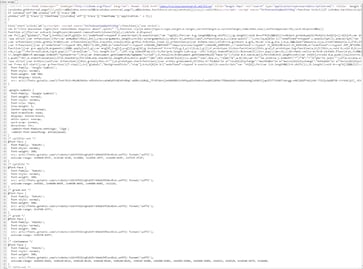
2. Press ‘Ctrl+F’, which will bring up the search function. Type in ‘**ludocid**” into the search bar, and press enter.

3. If you’ve followed the above steps correctly, you should be able to find the CID. It will be a string of characters that appears between ‘**ludocid\\\\u003d**’ and the ‘**#lrd**”. This is the same process for every CID.
EXAMPLE: If this is the code, **the CID is in bold:**
ON+L3Y+4V8\\\\u0026ludocid\\\\u003d**18208190227674681406**#lrd\\\\ u003d0x882ace1b6df9d1db:0xfcb07c8a7b49d03e
#### Finding your CID - Service Area Business
If you have a service area business, the process is going to look a little different because the view-source method doesn’t work. Instead, we are going to look at the URL.
When you are ready, open Google Maps and follow these steps:
1. Pull up the listing on Google Maps. Remember, you don’t want to use search results, since you want to pinpoint the exact business.
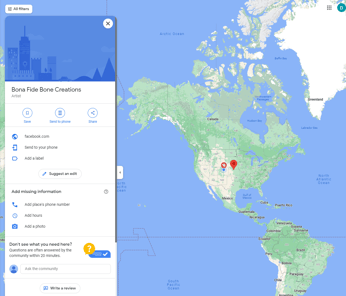
2. Pinpoint the business.
3. Once you’ve locked on to the business, click on the address bar in your browser. Copy all from the address bar. Go back to Agency Assassin dashboard, and paste the contents of the address bar to the CID field in the campaign settings and press "Validate" button.

Alternatively, perform the following:
1. Pull up the listing on Google Maps. Once you’ve locked on to the business, click on the address bar in your browser. Let’s take a look at that URL. You’ll notice two very long strings of characters starting with 0x. There is usually a colon between the two of them.
1. The second of the 0x strings is actually the CID. It won’t look like a number right now, though, because it’s in **hexadecimal code**.
2. https://www.google.ca/maps/place/Sequoia+TreeScape/@44.0537056,-80.5823363,8z/ data=!3m1!4b1!4m5!3m4!1s0x882ad2157062b6c3:0xe060d065957c4103!8m2!3d44.0591868!4d-79.4612559
2. Pay attention to the two numbers starting with 0x listed above - one red, and one blue. The red one, the first string of numbers after the first 0x, can be ignored. The second of the two (blue) is the number you want - but you will **leave off** the 0x at the beginning. This example would be **e060d065957c4103**
3. To reveal the CID number, you’ll need a hexadecimal converter. There are a few free ones, which are very easy to use available online.
1. For the above example, you should have ended up with **16168151796978303235**
4. After conversion, it should come out to a number - this is your Business’ CID!
- [Campaigns](https://info.agencyassassin.com/knowledge-base/campaigns?hsLang=en-us)
- [Keywords](https://info.agencyassassin.com/knowledge-base/keywords?hsLang=en-us)
- [Traffic](https://info.agencyassassin.com/knowledge-base/traffic?hsLang=en-us)
- [Reviews](https://info.agencyassassin.com/knowledge-base/reviews?hsLang=en-us)
- [Google](https://info.agencyassassin.com/knowledge-base/google?hsLang=en-us)
- [Contact](https://info.agencyassassin.com/knowledge-base/contact?hsLang=en-us)
- [Product Updates](https://info.agencyassassin.com/knowledge-base/product-updates?hsLang=en-us)
[](http://agencyassassin.com)
Denver, US
Copyright © 2024, Agency Assassin