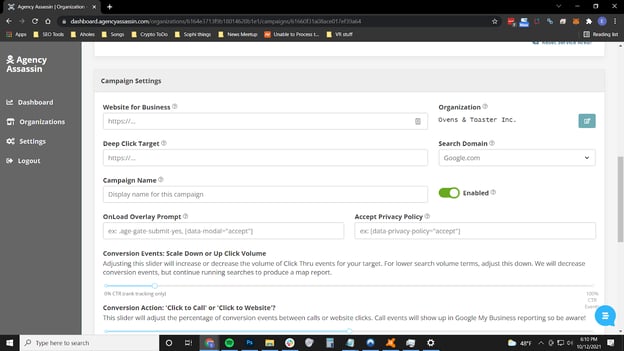
Step by Step Guide - Campaign Setup
- Login to your Agency Assassin dashboard
- Click ‘Dashboard’ tab
Click on the "Create campaign" button to create a new Campaign
- In "Setup Your Search Area" tab click on "Physical Location" or "Service Area Business". For most businesses (for more information about setting up a Service Area Business, check the FAQ)

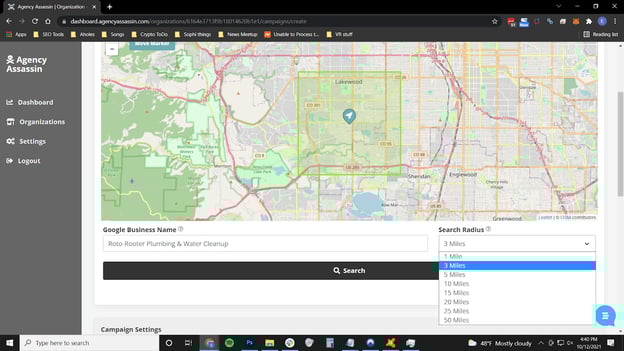
- Enter your Business Name and press ‘Search’
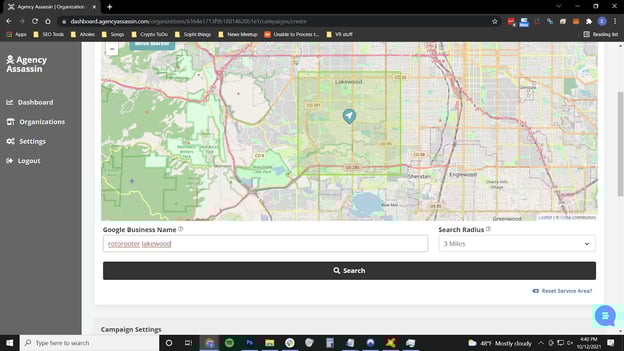
- Confirm your Business Name
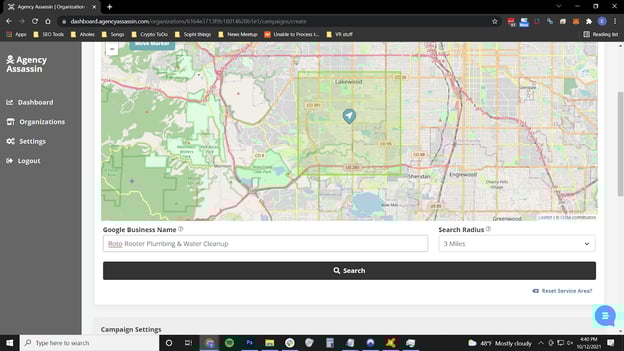
- Confirm Search Radius (For many campaigns starting with just 2-5 miles is enough; too large of a search radius may negatively impact your campaign)
- Give your campaign a name
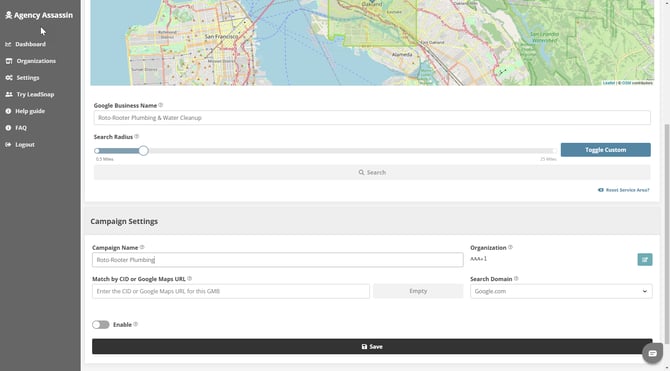
- Add your business CID and press "save"
The easiest way to enter CID: in a separate browser tab open google maps, select your business and then copy the address line of google maps. Paste it to the CID field in agency assassin. You can view the step-by-step guide for finding and adding the CID here
- Select % of total Search Events to end in Conversion Events
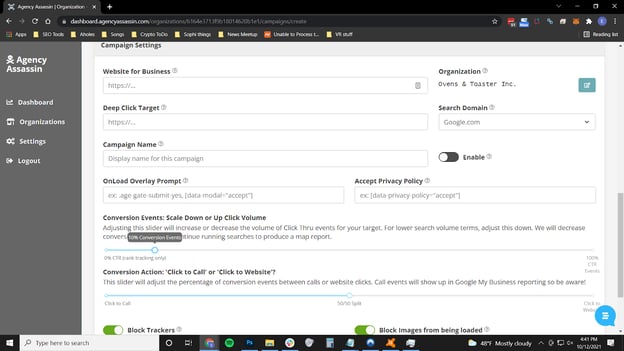
- Add the campaign keywords.
(Pro tip: you can copy and paste a list of keywords instead of entering one at a time). We strongly advise you use the keywords from the Google Business profile. For additional keyword information, check here and check out our video)
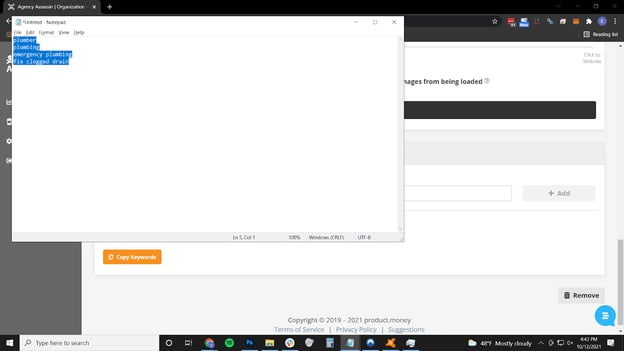
You can add multiple keywords before clicking the ‘+Add’ button


- Select ‘Click to Website’, ‘Click to Call’ or some combination. (Check the FAQ for important information about ‘Click to Call’ events and your Google My Business Analytics)

EXAMPLE BELOW (this is a typical example of how we run a normal campaign, but this configuration does impact Google My Business analytics call numbers)
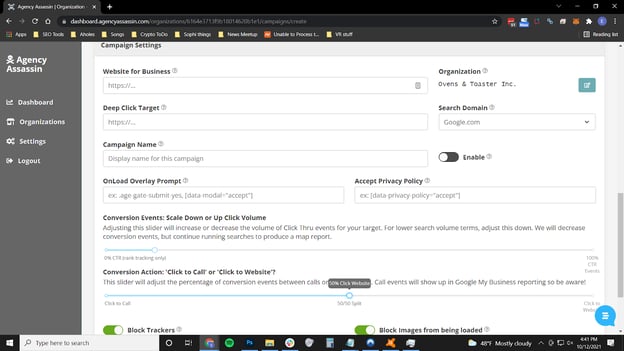
- Click ‘Save’
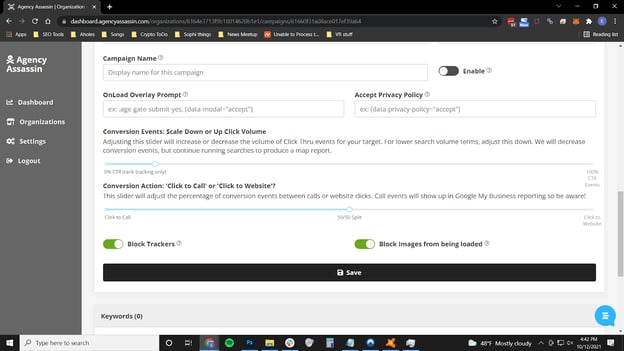
- See below for the page appearance after saving:
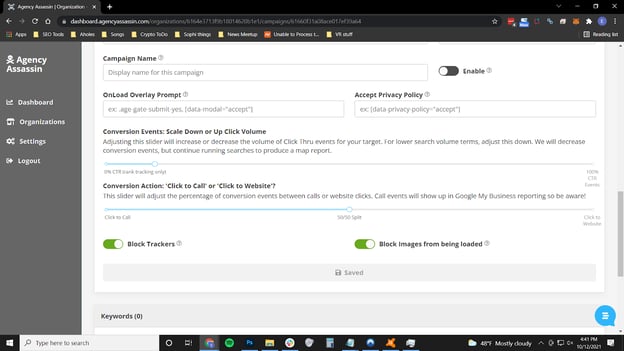
- Enable your Campaign … and you’re done!